Access Control Rules
Access Control Rules allow you to configure custom CAPTCHA policies for specific users or groups based on their attributes. You can increase or decrease CAPTCHA difficulty, or block access entirely, based on combinations of IP addresses, user IDs, browser fingerprints, and other identifiers.
Overview
Section titled OverviewAccess control rules evaluate incoming CAPTCHA requests against configured conditions. When a request matches a rule’s conditions, the specified policy is applied instead of your site’s default CAPTCHA settings.
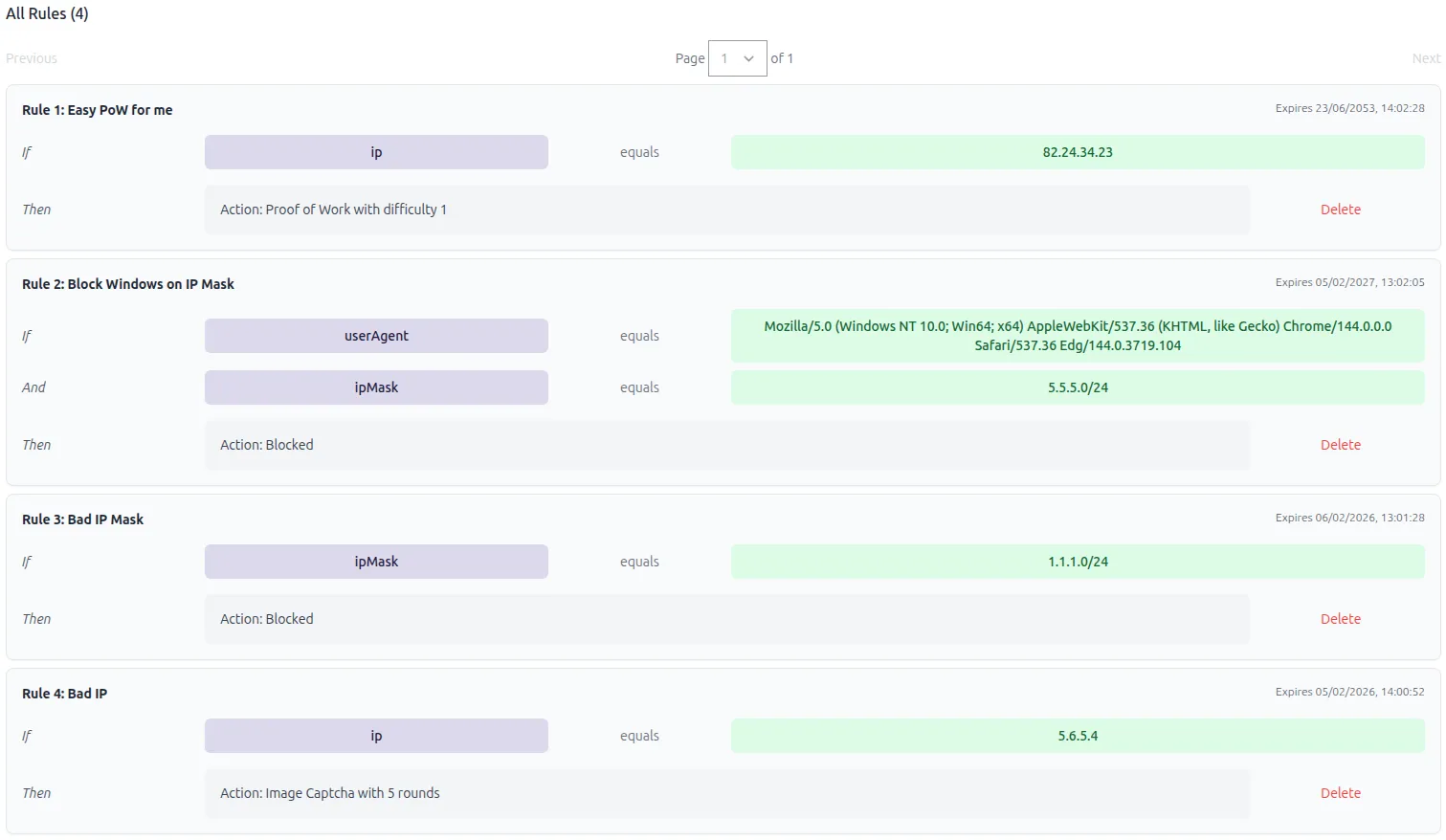
Rule Matching
Section titled Rule MatchingMatching Logic
Section titled Matching LogicRules use AND logic - all conditions within a rule must match for the rule to apply. Each condition specifies a field, operator, and value that must be satisfied.
For example, a rule with conditions for IP address AND country code will only match requests that satisfy both conditions simultaneously.
Match Precedence
Section titled Match PrecedenceWhen multiple rules could apply to a request, rules are matched in order of specificity - the number of conditions that match the request. Rules with more matching conditions take precedence over rules with fewer matching conditions.
Example:
- Rule A: IP = 1.1.1.1 AND Country = US (2 conditions)
- Rule B: IP = 1.1.1.1 (1 condition)
A request from IP 1.1.1.1 in the US would match Rule A because it has more matching conditions.
Conditions
Section titled ConditionsAvailable Fields
Section titled Available FieldsAccess control rules can match on the following fields:
IP Address
Section titled IP AddressMatch exact IPv4 addresses.
Format: 1.1.1.1
Use case: Target specific IP addresses for blocking or custom CAPTCHA policies.
IP Mask (CIDR)
Section titled IP Mask (CIDR)Match ranges of IPv4 addresses using CIDR notation.
Format: 1.1.1.0/24
Example: 192.168.1.0/24 matches all IPs from 192.168.1.0 to 192.168.1.255
Use case: Apply policies to entire IP ranges, such as corporate networks or VPN services.
User ID
Section titled User IDMatch specific user identifiers passed in the CAPTCHA request.
Format: Alphanumeric string
Use case: Apply different CAPTCHA policies to known users versus anonymous users.
JA4 Hash
Section titled JA4 HashMatch browser fingerprints using JA4 TLS fingerprinting.
Format: t13d1516h2_8daaf6152771_a278895b5b6a
Use case: Identify and respond to specific browser/TLS configurations associated with bots or automation tools.
User Agent
Section titled User AgentMatch HTTP User-Agent strings.
Format: Full User-Agent string
Example: Mozilla/5.0 (Windows NT 10.0; Win64; x64) AppleWebKit/537.36
Use case: Apply policies based on browser type, version, or operating system.
Country Code
Section titled Country CodeMatch requests from specific countries using ISO 3166-1 alpha-2 country codes.
Format: Two-letter country code (e.g., US, GB, FR)
Use case: Apply stricter or more lenient policies for specific geographic regions.
Operators
Section titled OperatorsCurrently, only the equals operator is supported. The condition matches when the field value exactly equals the specified value.
Policies
Section titled PoliciesWhen a rule matches, one of the following policies is applied:
Block
Section titled BlockCompletely blocks the request. The CAPTCHA verification will fail regardless of whether the user completes the challenge.
Use case: Block known malicious IPs, bot networks, or abusive users.
Restrict with Custom CAPTCHA
Section titled Restrict with Custom CAPTCHAOverride the site’s default CAPTCHA settings with a custom configuration:
Image CAPTCHA
Section titled Image CAPTCHARequire the user to solve image-based CAPTCHA challenges.
Configuration:
- Number of rounds: How many image challenges the user must solve (1-10)
Use case: Apply stricter verification to suspicious traffic while allowing legitimate users to proceed.
Proof of Work
Section titled Proof of WorkRequire the user to complete a computational challenge.
Configuration:
- Difficulty level: Computational difficulty (1-10, higher is more difficult)
Use case: Slow down automated requests without requiring user interaction.
Rule Expiry
Section titled Rule ExpiryAll rules have an expiration time. When a rule expires, it is no longer evaluated and will not affect incoming requests.
Expiry units:
- Minutes
- Hours
- Days
Use case: Temporarily block an IP address during an active attack, or apply stricter policies during high-risk periods.
Configuration via Portal
Section titled Configuration via PortalAccess control rules can be managed through the Prosopo Portal in the Access Control page. The interface provides three tabs:
Editor Tab
Section titled Editor TabCreate custom rules by:
- Adding one or more conditions (field, operator, value)
- Configuring the policy (block or custom CAPTCHA)
- Setting the expiration time
- Adding an optional description
Display Tab
Section titled Display TabView all active and expired rules for your site. Rules can be deleted individually.
Examples
Section titled ExamplesBlock Specific IP Address
Section titled Block Specific IP AddressConditions:
- IP Address equals
203.0.113.45
Policy: Block
Expiry: 24 hours
Description: Blocking detected bot IP
Strict Verification for VPN Range
Section titled Strict Verification for VPN RangeConditions:
- IP Mask equals
10.8.0.0/16
Policy: Image CAPTCHA, 3 rounds
Expiry: 7 days
Description: Additional verification for VPN traffic
Country-Specific Policy
Section titled Country-Specific PolicyConditions:
- Country Code equals
CN
Policy: Proof of Work, difficulty 7
Expiry: 30 days
Description: PoW verification for China
Multi-Condition Rule
Section titled Multi-Condition RuleConditions:
- Country Code equals
US - IP Mask equals
1.1.1.0/24
Policy: Block
Expiry: 1 hour
Description: Block specific range in US during incident
This rule only matches requests that satisfy both the country AND IP mask conditions.
Rule Creation Workflow
Section titled Rule Creation Workflow- Navigate to Access Control page in the portal
- Switch to the Editor tab
- Add conditions by selecting field, operator, and entering value
- Configure policy - choose between block or custom CAPTCHA type
- Set expiry - choose duration and unit
- Add description (optional) - explain the rule’s purpose
- Submit the rule
The rule becomes active immediately and begins evaluating incoming requests.
Rule Management
Section titled Rule ManagementViewing Rules
Section titled Viewing RulesThe Display tab shows all rules with:
- Description
- Conditions (field, operator, value)
- Policy details
- Expiration date/time
- Status (active or expired)
Deleting Rules
Section titled Deleting RulesRules can be deleted at any time by clicking the “Delete” button on the Display tab. Deletion is immediate and cannot be undone.
Expired Rules
Section titled Expired RulesExpired rules remain visible in the Display tab but are marked as expired. They no longer affect incoming requests. Expired rules can be deleted manually.
Use Cases
Section titled Use CasesBot Mitigation
Section titled Bot MitigationBlock or restrict known bot IP addresses and user agents:
// Block known bot IPIP Address equals "192.0.2.100"Policy: BlockGeographic Access Control
Section titled Geographic Access ControlApply different policies based on geographic origin:
// Stricter verification for high-risk regionsCountry Code equals "XX"Policy: Image CAPTCHA, 5 roundsNetwork-Based Policies
Section titled Network-Based PoliciesApply policies to specific networks or organizations:
// Custom policy for corporate VPNIP Mask equals "10.0.0.0/8"Policy: Proof of Work, difficulty 3Incident Response
Section titled Incident ResponseQuickly respond to active attacks:
// Block attacking subnet during incidentIP Mask equals "203.0.113.0/24"Policy: BlockExpiry: 1 hourFingerprint-Based Detection
Section titled Fingerprint-Based DetectionTarget specific browser fingerprints associated with automation:
// Block known bot fingerprintJA4 Hash equals "t13d1516h2_8daaf6152771_a278895b5b6a"Policy: BlockConsiderations
Section titled ConsiderationsAccount-Wide Scope
Section titled Account-Wide ScopeAccess control rules apply to all site keys in your account. When creating a rule, consider:
- The rule will affect CAPTCHA verification for all your sites
- Blocking an IP address will block it across all sites
- Custom CAPTCHA policies will apply to all sites
- Use appropriate conditions to avoid unintended impacts across multiple sites
Rule Limits
Section titled Rule LimitsEach site can have multiple active rules. However, a large number of rules may impact performance. Consider consolidating rules where possible using IP masks instead of individual IP addresses.
AND Logic
Section titled AND LogicRemember that all conditions within a rule must match. If you need to match requests that satisfy condition A OR condition B, create two separate rules.
False Positives
Section titled False PositivesBe cautious when creating broad rules (e.g., blocking entire countries or large IP ranges) as this may block legitimate users. Start with stricter policies (Image CAPTCHA or PoW) before resorting to complete blocks.
Testing
Section titled TestingTest rules with specific conditions before deploying broadly. Create a rule with a short expiry time and monitor its impact before extending the duration.
Expiry Management
Section titled Expiry ManagementSet appropriate expiry times based on your use case:
- Minutes/Hours: Active incidents, temporary blocks
- Days: Known malicious sources, ongoing threats
- Review regularly: Check and remove expired rules to keep the rules list clean
Availability
Section titled AvailabilityAccess Control Rules are available to customers with the Access Rules feature flag enabled. Contact support to enable this feature for your account.
Learn