API Keys
Dieser Inhalt ist noch nicht in deiner Sprache verfügbar.
API keys allow you to interact with Prosopo services programmatically — for example, managing access control rules, provisioning sites or querying traffic data from your backend without using the portal UI. Every endpoint a key can call is listed in the API reference.
API keys are not used for CAPTCHA verification. /siteverify authenticates with your site’s secret key instead.
API key management is available to accounts with the API feature enabled. It is off by default — contact support to have it turned on.
Creating an API Key
Section titled Creating an API Key- Log in to the Prosopo Portal
- Navigate to API Keys from the main menu
- Click Create API Key
- Fill in the required fields:
- Name (required): A descriptive label for the key, e.g. “Production Backend” or “CI/CD Pipeline”
- Expiration Time (optional): Time in seconds until the key expires. Leave it empty, or enter
0, for a key that does not expire. - Permissions (required): Select which operations this key can perform (see below)
- Click Create API Key
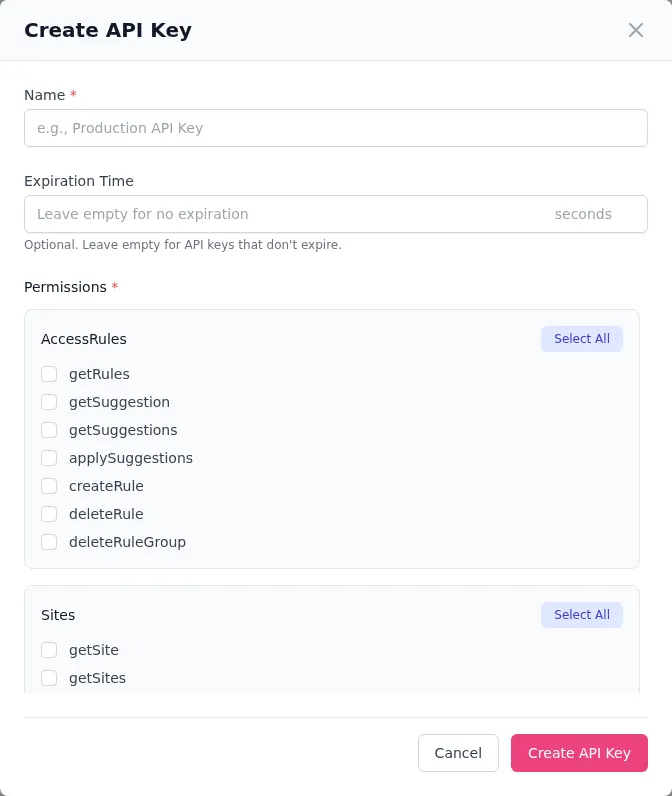
The key stays available after creation: it is listed on the API Keys page, hidden until you click to show it, and is also returned by /api-keys/get. Treat that page and that endpoint as secret.
Permissions
Section titled PermissionsEach API key is scoped to a specific set of permissions. Only grant the permissions the key actually needs. A permission group only appears when the matching feature is enabled on your account.
Access Rules
Section titled Access Rules| Permission | Description |
|---|---|
getRules | List access control rules |
createRule | Create a new access control rule |
deleteRule | Delete an access control rule |
deleteRuleGroup | Delete an access control rule group |
Sites
Section titled Sites| Permission | Description |
|---|---|
getSite | Get a single site’s details |
getSites | List all sites |
createSite | Create a new site |
deleteSite | Delete a site |
updateSite | Update site settings |
API Keys
Section titled API Keys| Permission | Description |
|---|---|
getApiKeys | List API keys |
createApiKey | Create a new API key |
deleteApiKey | Delete an API key |
There is no way to edit a key’s permissions after creation. To change them, create a replacement key and delete the old one.
Users
Section titled Users| Permission | Description |
|---|---|
getUsers | List team members |
createUser | Invite a new team member |
updateUser | Update a team member’s role |
deleteUser | Remove a team member |
Traffic
Section titled Traffic| Permission | Description |
|---|---|
getTraffic | Query traffic analytics data |
Search Captcha Records
Section titled Search Captcha Records| Permission | Description |
|---|---|
searchCaptchaRecords | Search and retrieve CAPTCHA audit records |
Protect
Section titled Protect| Permission | Description |
|---|---|
updateProtectSettings | Manage Protect instances and edge access rules, and read verdicts and traffic |
ingestClientEvents | Send client events to Protect, and nothing else |
ingestClientEvents is deliberately separate so a log shipper on your own infrastructure can report events without being able to change what Protect enforces.
The dialog also offers getSuggestion, getSuggestions, applySuggestions and updateApiKey. No endpoint currently checks them, so granting them has no effect.
Using an API Key
Section titled Using an API KeyInclude the API key in the Authorization header of your HTTP requests. This example lists your access control rules and needs the getRules permission:
curl -X POST https://api.prosopo.io/access-control/get \ -H "Authorization: Bearer YOUR_API_KEY" \ -H "Content-Type: application/json" \ -d '{}'Or in code:
const response = await fetch('https://api.prosopo.io/access-control/get', { method: 'POST', headers: { 'Authorization': `Bearer ${apiKey}`, 'Content-Type': 'application/json', }, body: JSON.stringify({}),});See the API reference for every endpoint, its permission and its request body.
Managing API Keys
Section titled Managing API KeysViewing Keys
Section titled Viewing KeysThe API Keys page shows all keys for your account. Each one displays:
- Name: The label you gave the key
- Token: The key itself, hidden until you click to show it
- Expires At: When the key expires, or “Never” for non-expiring keys
- Permissions: Which operations the key can perform
Deleting Keys
Section titled Deleting KeysTo revoke an API key, click Remove on it in the API Keys list. The key is immediately invalidated — any requests using it will be rejected.
Deletion is permanent and cannot be undone. If you delete a key by mistake, create a new one and update your application with the new key.
Security Best Practices
Section titled Security Best PracticesPrinciple of Least Privilege
Section titled Principle of Least PrivilegeOnly grant the permissions each key actually needs. A key used solely to sync access control rules needs getRules, createRule and deleteRule — it does not need createSite or deleteUser.
Use Expiring Keys for Temporary Access
Section titled Use Expiring Keys for Temporary AccessWhen granting access to a contractor, CI/CD pipeline, or temporary integration, set an expiration time so the key is automatically invalidated.
Rotate Keys Regularly
Section titled Rotate Keys RegularlyFor long-lived production keys, rotate them periodically:
- Create a new key with the same permissions
- Update your application to use the new key
- Verify the new key works
- Delete the old key
Never Expose Keys Client-Side
Section titled Never Expose Keys Client-SideAPI keys should only be used in server-side code. Never embed them in frontend JavaScript, mobile apps, or public repositories. For client-side CAPTCHA integration, use site keys instead — see Client-side Rendering.
Monitor Usage
Section titled Monitor UsageReview the Audit page and traffic analytics to detect any unexpected API key usage patterns that could indicate a compromised key.
Learn