Traffic Filter
The Traffic Filter lets you block CAPTCHA verification requests based on the type of network connection the user is on. Each filter is an independent toggle, so you can tailor the policy per site without affecting other checks.
Traffic from abusive networks is blocked by default for every account, including free tier. All other filters are available to Professional and Enterprise tier customers.
Available Filters
Section titled Available Filters| Filter | Setting | Status Code | Default |
|---|---|---|---|
| VPN | blockVpn | API.VPN_BLOCKED | Off |
| Proxy | blockProxy | API.PROXY_BLOCKED | Off |
| Tor | blockTor | API.TOR_BLOCKED | Off |
| Abusive ASN | blockAbuser | API.ABUSER_BLOCKED | On |
| Datacenter | blockDatacenter | API.DATACENTER_BLOCKED | Off |
| Mobile | blockMobile | API.MOBILE_BLOCKED | Off |
| Satellite | blockSatellite | API.SATELLITE_BLOCKED | Off |
| Crawler | blockCrawler | API.CRAWLER_BLOCKED | Off |
Each filter is its own toggle on the Traffic Filter tab of Site Settings:
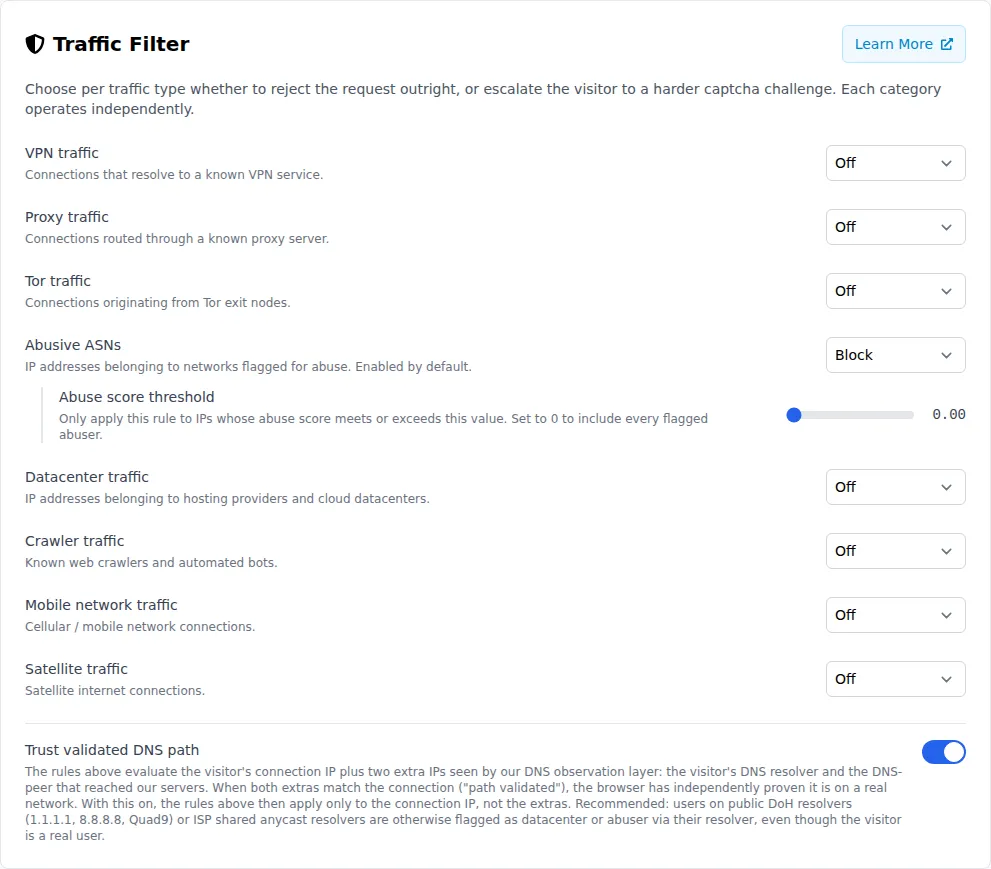
Each filter returns a specific status code when it blocks a request. Your application can use these codes to show the user a tailored message (for example, asking a VPN user to disconnect and retry).
How It Works
Section titled How It Works- A user submits a CAPTCHA solution.
- Your server calls the Prosopo verification endpoint, optionally including the user’s IP address.
- The provider looks up IP metadata (geolocation, ASN, threat classification) using a local IP information service.
- Each enabled traffic filter is evaluated against the IP metadata.
- If any filter matches, verification is rejected with the corresponding status code.
- If no filter matches, verification proceeds normally.
Traffic filter checks run before other verification logic (captcha correctness, IP distance, email rules, etc.), so blocked traffic is rejected early without wasting compute.
Providing the IP Address
Section titled Providing the IP AddressTraffic filters always run. By default they evaluate the IP recorded when the user initiated the captcha session (the browser’s IP at session-start time, captured by the provider when the widget first contacted it).
If the end user’s IP may have changed between solving the captcha and your server calling /verify (e.g. they moved networks), pass the current IP in the optional ip field. The provider then re-resolves IP info against that “now” IP and runs the filters on the fresh result:
{ "secret": "your_secret_key", "token": "PROCAPTCHA-RESPONSE", "ip": "USER_IP_ADDRESS"}See the Server-side Verification docs for details.
Filter Details
Section titled Filter DetailsBlocks connections identified as VPN services. This is one of the most common signals of automated abuse, but keep in mind that some legitimate users rely on VPNs for privacy.
Proxy
Section titled ProxyBlocks connections routed through known proxy servers, including HTTP, HTTPS, and SOCKS proxies.
Blocks connections originating from Tor exit nodes. Tor traffic is strongly associated with anonymity and is frequently used by bots.
Abusive ASN
Section titled Abusive ASNBlocks IP addresses belonging to Autonomous Systems (networks) flagged for abuse. This is the only filter enabled by default because abusive networks have a very high correlation with bot traffic and a low false-positive rate for legitimate users.
Free-tier accounts always have this filter enabled and cannot disable it.
Datacenter
Section titled DatacenterBlocks IP addresses belonging to hosting providers and cloud datacenters. Most real users browse from residential or mobile connections, so datacenter traffic is often automated. However, some corporate networks route through datacenter IPs, so consider your audience before enabling this filter.
Mobile
Section titled MobileBlocks connections from cellular/mobile networks. This filter is situational — it’s useful when you want to restrict submissions to fixed-line connections, but will block legitimate mobile users.
Satellite
Section titled SatelliteBlocks connections from satellite internet providers. This is a niche filter for cases where satellite traffic is not expected.
Crawler
Section titled CrawlerBlocks known web crawlers and automated bots. This includes search engine bots and other well-known crawlers.
Configuration via Portal
Section titled Configuration via PortalTraffic filters are configured in the Prosopo Portal under Site Settings > Traffic Filter. Each filter has an independent toggle switch.
Free-tier accounts see the abusive-network toggle locked on, with the remaining filters showing an upgrade prompt. Professional and Enterprise tier accounts can toggle all filters freely.
Fail-Open Behavior
Section titled Fail-Open BehaviorIf the IP information lookup fails (network timeout, service unavailable, etc.), the traffic filter allows the request through rather than blocking it. This prevents an outage in the IP intelligence service from blocking all legitimate traffic.
Verification Response
Section titled Verification ResponseWhen a traffic filter blocks a request, the verification endpoint returns:
{ "verified": false, "status": "API.VPN_BLOCKED"}The status field contains the specific filter that triggered the block. Your application can use this to show a user-friendly message:
if (result.status === 'API.VPN_BLOCKED') { showMessage('Please disconnect your VPN and try again.');} else if (result.status === 'API.TOR_BLOCKED') { showMessage('Tor connections are not supported. Please use a standard browser.');}Use Cases
Section titled Use CasesE-Commerce (Moderate Security)
Section titled E-Commerce (Moderate Security)Block the highest-risk traffic while allowing most legitimate users:
- Abusive ASN: On (default)
- Tor: On
- Crawler: On
- Everything else: Off
Financial Services (High Security)
Section titled Financial Services (High Security)Strict filtering to minimize automated fraud:
- Abusive ASN: On (default)
- VPN: On
- Proxy: On
- Tor: On
- Datacenter: On
- Crawler: On
Consumer App (Permissive)
Section titled Consumer App (Permissive)Rely on the default abusive-network blocking only:
- Abusive ASN: On (default)
- Everything else: Off
Availability
Section titled Availability| Tier | Abusive ASN | Other Filters |
|---|---|---|
| Free | Always on | Not available |
| Professional | Configurable | Configurable |
| Enterprise | Configurable | Configurable |