Image Accuracy Threshold
Questi contenuti non sono ancora disponibili nella tua lingua.
The Image Accuracy Threshold controls how many image selections a user must get right for their CAPTCHA solution to be accepted. It applies whenever a user is presented with an image CAPTCHA challenge — either directly (image CAPTCHA mode) or as a fallback from frictionless mode when the bot score is above the safety threshold.
How It Works
Section titled How It WorksWhen a user submits an image CAPTCHA solution, the system compares their selections against the known correct answers and calculates an accuracy percentage. The threshold determines the minimum accuracy required for the solution to pass:
- Accuracy >= Threshold: Solution accepted
- Accuracy < Threshold: Solution rejected — the user must try again
Threshold Levels
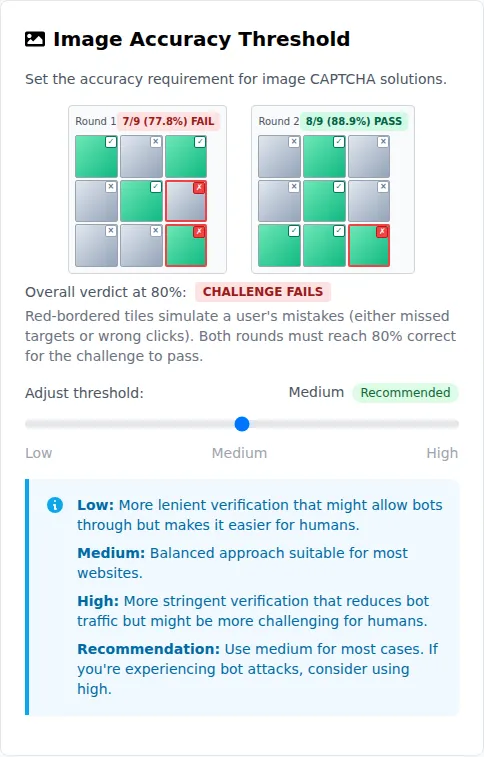
Section titled Threshold LevelsThe threshold is configured via a three-position slider in the portal:
| Level | Value | Description |
|---|---|---|
| Low | 70% | More lenient. Easier for humans but may allow some bots through. |
| Medium | 80% | Balanced approach suitable for most websites. Recommended. |
| High | 90% | More stringent. Better security but may be more challenging for legitimate users. |
When to Use Low (70%)
Section titled When to Use Low (70%)- High-traffic sites where user friction must be minimized
- Audiences that may struggle with image recognition (accessibility considerations)
- Content sites where occasional incorrect solves are acceptable
When to Use Medium (80%)
Section titled When to Use Medium (80%)- General-purpose websites
- E-commerce and SaaS applications
- Most use cases — this is the recommended default
When to Use High (90%)
Section titled When to Use High (90%)- Sites under active bot attack
- Financial or sensitive applications requiring strong verification
- High-value form submissions (registrations, purchases, payments)
Relationship to Other Settings
Section titled Relationship to Other SettingsSafety Threshold
Section titled Safety ThresholdThe Safety Threshold determines whether a user sees an image CAPTCHA at all. The Image Accuracy Threshold determines how accurately they must solve it. These work together:
- User arrives and the frictionless system calculates a bot score
- If the bot score is below the Safety Threshold, the user passes with an invisible PoW challenge (Image Accuracy Threshold is not involved)
- If the bot score is above the Safety Threshold, the user is presented with an image CAPTCHA
- The Image Accuracy Threshold then determines how many selections must be correct
CAPTCHA Type
Section titled CAPTCHA TypeThe Image Accuracy Threshold only applies when image CAPTCHAs are served. If your site is configured to use only Proof of Work CAPTCHAs, this setting has no effect. In frictionless mode, it applies to the image CAPTCHA fallback.
Configuration
Section titled Configuration- Log in to the Prosopo Portal
- Navigate to Site Settings > General Settings
- Find the Image Accuracy Threshold card
- Use the slider to select Low, Medium, or High
- Click Save All Changes
Recommendations
Section titled Recommendations- Start with Medium for most sites — it provides a good balance between security and usability.
- If you see a high rate of legitimate users failing image CAPTCHAs, consider lowering to Low temporarily and investigating whether the issue is with the threshold or with the captcha content.
- If you’re under attack and bots are solving image CAPTCHAs, raise the threshold to High and consider combining with other measures (Traffic Filter, IP Validation Rules).
- Monitor your verification analytics in the Audit page to understand how threshold changes affect pass/fail rates.