Qualtrics
This guide adds Procaptcha to a Qualtrics survey. People who pass the check see your questions. Bots, and anyone who tries to skip the check, are sent straight to the end of the survey.
You don’t need to write code, host anything, or have JavaScript enabled on your Qualtrics licence.
How it works
Section titled How it works- The respondent opens your normal Qualtrics survey link. The first page asks them to start a security check.
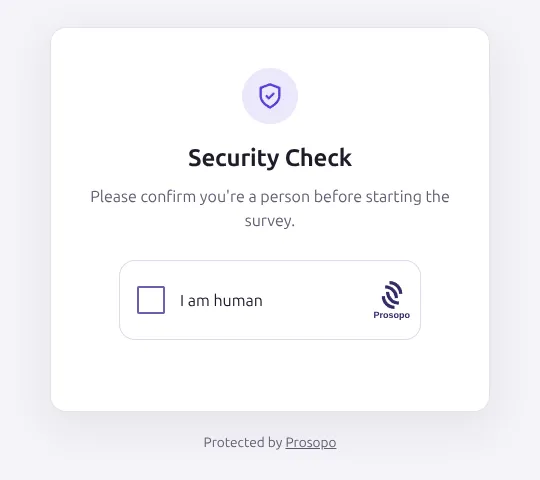
- The link takes them to a Prosopo page that shows the Procaptcha widget.
- When they pass, they are sent back to your survey with a one-time token added to the link.
- Before showing any questions, the survey’s Survey Flow sends that token and your secret key to Prosopo’s
siteverifyendpoint. - If Prosopo answers
verified: true, the survey continues. Otherwise the survey ends.
A token works once and expires after a few minutes, so a copied or shared link stops working after it has been used.
The check happens on Qualtrics’ servers, not in the respondent’s browser, so it cannot be skipped by editing the page
or adding captcha_verified=true to the link.
What you need
Section titled What you need- A Qualtrics licence that includes the Web Service element in Survey Flow. To check, open Survey flow, select Add a New Element Here, and look for Web Service.
- A Prosopo site key and secret key from the Prosopo portal.
1. Create a site in the Prosopo portal
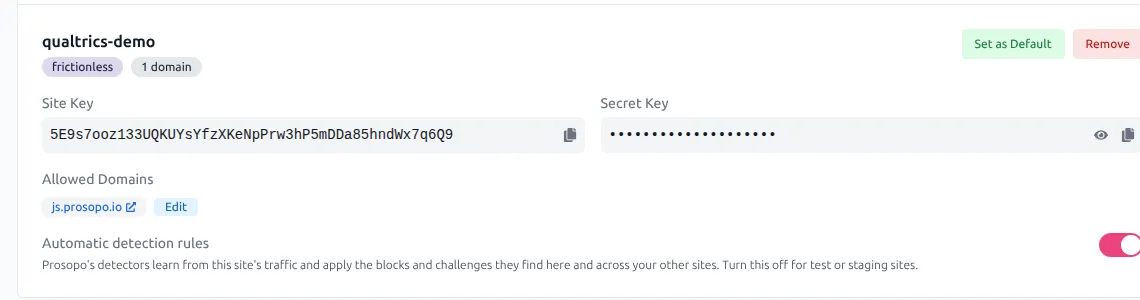
Section titled 1. Create a site in the Prosopo portal- Log in to the Prosopo portal and open Site Management.
- Select Create New Site and give it a name, such as
qualtrics-survey. - Under Allowed Domains, add
js.prosopo.io. This is where the Procaptcha widget is shown. - Copy the Site Key and the Secret Key.
2. Add the security check page to your survey
Section titled 2. Add the security check page to your survey- Open your survey in the Builder, select Add Block, and name the block
Security check. - Add a Text / Graphic question to it.
- Select the question text, then HTML View, and paste the following. Replace
YOUR_SITE_KEYwith your site key, andYOUR_SURVEY_LINKwith your survey’s anonymous link (in Qualtrics: Distributions → Anonymous link). It looks likehttps://yourorg.qualtrics.com/jfe/form/SV_xxxxxxxxxxxxxxx. The security check page only sends people to Qualtrics survey links in this form.
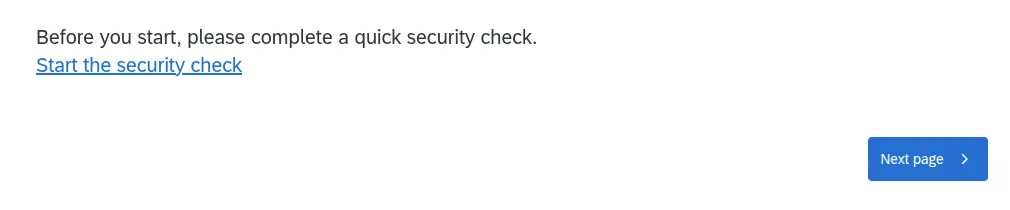
<p>Before you start, please complete a quick security check.</p><p><a href="https://js.prosopo.io/integrations/qualtrics.html?sitekey=YOUR_SITE_KEY&survey=YOUR_SURVEY_LINK" target="_self">Start the security check</a></p>The respondent sees this:
When they select the link, they see the security check:
3. Set up the Survey Flow
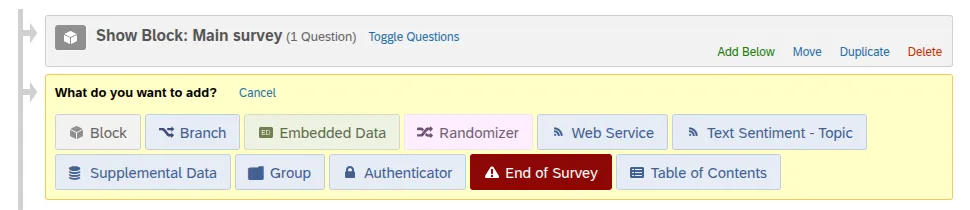
Section titled 3. Set up the Survey FlowOpen your survey and select Survey flow in the left-hand menu. Each element below is added with Add a New Element Here, or Add Below on the element above it.
Embedded Data
Section titled Embedded DataAdd an Embedded Data element at the top, with two fields:
| Field | Value |
|---|---|
procaptcha_token | Leave as Value will be set from Panel or URL. This reads the token from the link. |
captcha_verified | Select Set a Value Now and enter false. |
Setting captcha_verified to false here means it can only become true if Prosopo says so. Without it, someone could
add captcha_verified=true to the link and get in if the Prosopo call ever failed.

Show the security check to people without a token
Section titled Show the security check to people without a token- Below the Embedded Data element, add a Branch.
- Select Add a Condition and set it to Embedded Data →
procaptcha_token→ Is Empty. - Under the branch, add a Block and choose
Security check.

If someone selects Next instead of the link, they still have no token, so the check below fails and the survey ends.
Web Service
Section titled Web ServiceAdd a Web Service element below the branch (not inside it):
-
URL:
https://api.prosopo.io/siteverify -
Method:
POST -
Select Add a body parameter to send to web service… and change the format to
application/json. -
Add two body parameters:
Parameter Value secretYour Prosopo secret key token${e://Field/procaptcha_token} -
Under Set Embedded Data, select Add Embedded Data…. Enter
captcha_verifiedon the left andverifiedon the right. This copies theverifiedvalue from Prosopo’s answer intocaptcha_verified.
Leave Fire and Forget unticked, because the survey needs to wait for the answer.
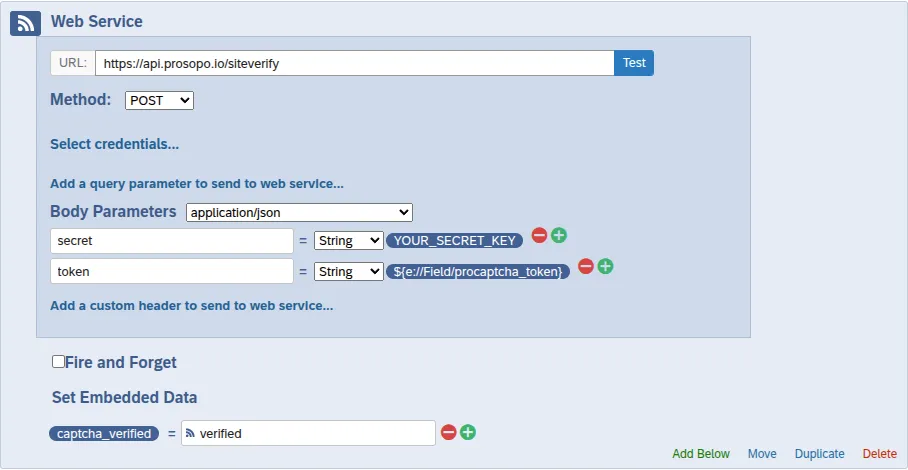
The secret key is stored in Survey Flow, which respondents cannot see. Anyone you give edit access to the survey can see it.
On the Professional and Enterprise Tiers, also send the respondent’s IP address so Prosopo can run extra checks on it. Add a third body parameter:
| Parameter | Value |
|---|---|
ip | ${loc://IPAddress} |
End the survey if the check failed
Section titled End the survey if the check failed- Add a Branch below the Web Service.
- Set its condition to Embedded Data →
captcha_verified→ Is Not Equal to →true. - Under the branch, add an End of Survey element.

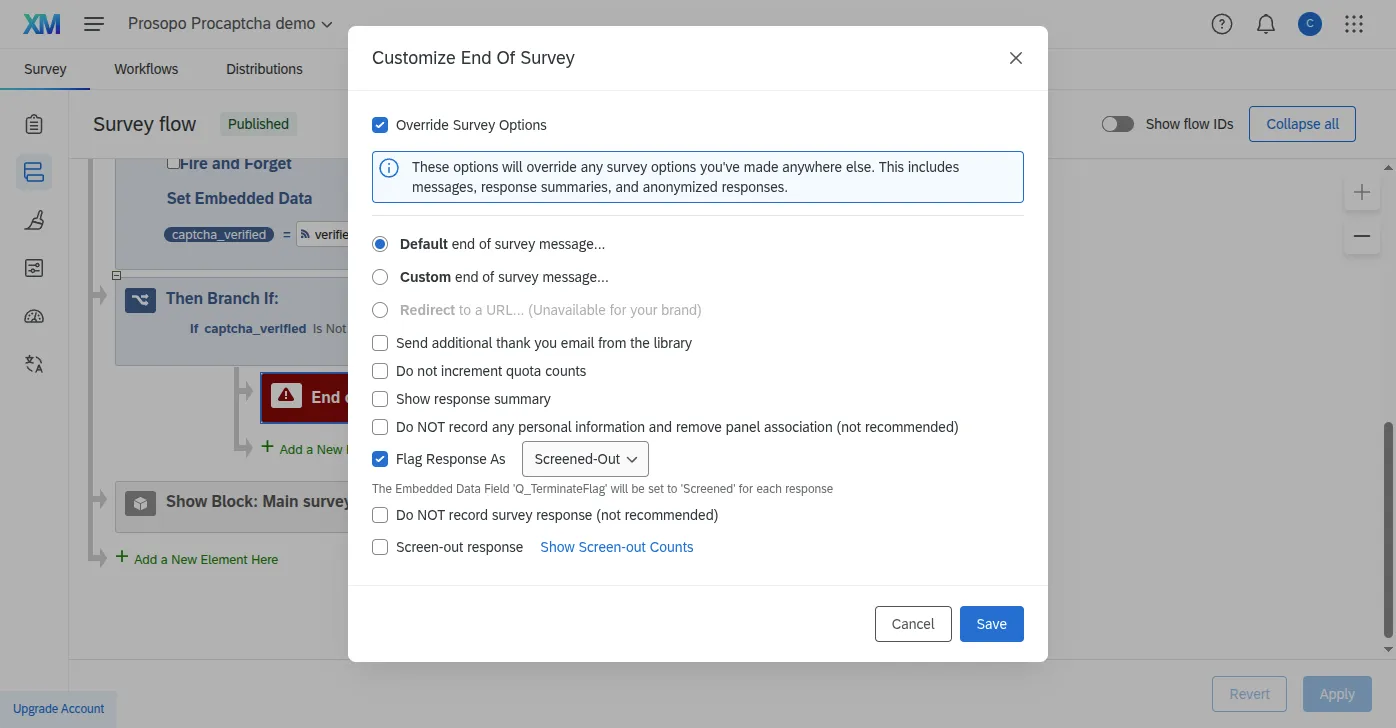
So that blocked attempts are not counted as completed responses, select Customize on the End of Survey element, tick Override Survey Options, then tick Flag Response As → Screened-Out.
Put your questions last
Section titled Put your questions lastYour question blocks must come after the second branch. When you add a block in the Builder, Qualtrics also adds
it to the bottom of the Survey Flow, so check that Security check only appears inside the first branch, and delete
any other copy of it.
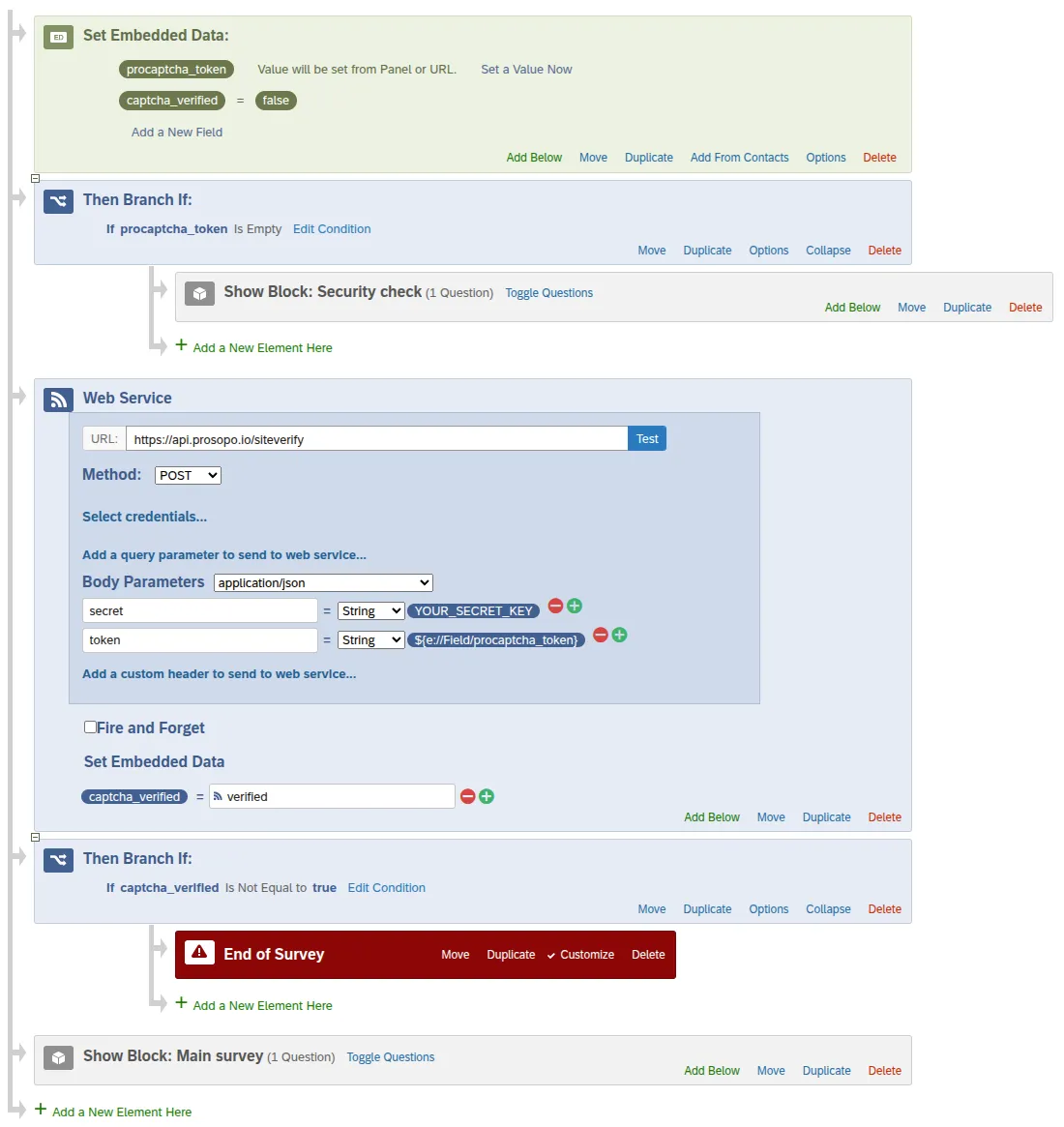
The finished flow looks like this:
Select Apply, then Publish.
4. Test it
Section titled 4. Test it| Test | What should happen |
|---|---|
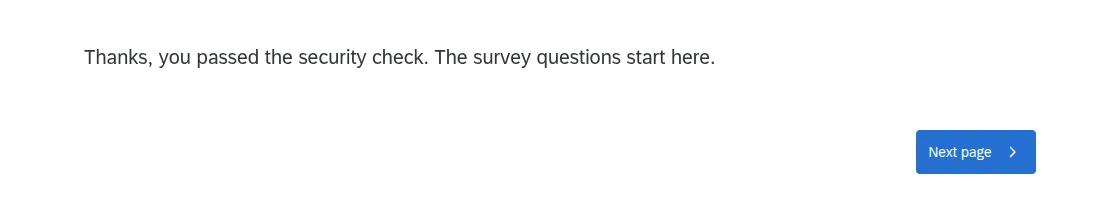
| Open the survey link, select Start the security check and pass it | Your first question appears. |
| Open the survey link and select Next without doing the check | The survey ends. |
Open the survey link with ?captcha_verified=true&procaptcha_token=anything | The survey ends straight away. |
| Pass the check, then open the same link (with the same token) again | The survey ends straight away, because the token has been used. |

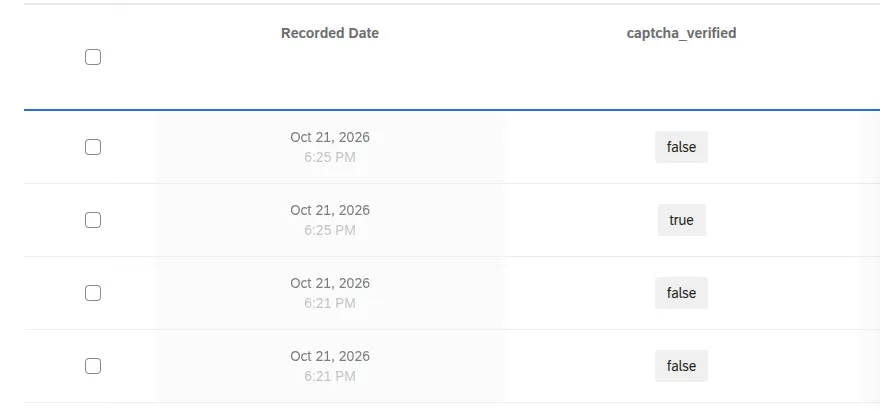
In Data & Analysis, add the captcha_verified column with Column chooser → Embedded Data. Real
respondents show true. Blocked attempts show false.
Hosting the security check page yourself
Section titled Hosting the security check page yourselfIf you would rather show the widget on your own website, save this page there and add your website’s domain to the
site’s Allowed Domains. You can then either link to it from the Security check question, or share it with
respondents instead of the Qualtrics link.
<!doctype html><html lang="en"><head>    <meta charset="utf-8">    <meta name="viewport" content="width=device-width, initial-scale=1">    <title>Security check</title>    <script type="module" src="https://js.prosopo.io/js/procaptcha.bundle.js" async defer></script></head><body>    <h1>Before you start the survey</h1>    <p>Please complete the security check below.</p>    <div class="procaptcha" data-sitekey="YOUR_SITE_KEY" data-callback="startSurvey"></div>    <script>        const SURVEY_URL = "https://yourorg.qualtrics.com/jfe/form/SV_xxxxxxxxxxxxxxx";
        function startSurvey(token) {            const url = new URL(SURVEY_URL);            url.searchParams.set("procaptcha_token", token);            window.location.assign(url.toString());        }    </script></body></html>
Never put your secret key in this page. Anyone can read it.
Showing the widget inside the survey
Section titled Showing the widget inside the surveyIf your Qualtrics licence lets you add JavaScript to questions, you can show the widget directly on the first page of the survey. Free and trial Qualtrics accounts cannot do this. To check, select a question and look for JavaScript under Question behavior.
-
In the Prosopo portal, add your Qualtrics domain (for example
yourorg.qualtrics.com) to the site’s Allowed Domains. -
In the
Security checkquestion, replace the link with a short instruction, such as “Please complete the security check below to continue.” -
Select Question behavior → JavaScript and replace its contents with the code below. Replace
YOUR_SITE_KEYwith your site key.Qualtrics.SurveyEngine.addOnReady(function () {var question = this;var container = document.createElement("div");question.getQuestionContainer().appendChild(container);question.hideNextButton();function render() {window.procaptcha.render(container, {siteKey: "YOUR_SITE_KEY",callback: function (token) {Qualtrics.SurveyEngine.setJSEmbeddedData("procaptcha_token", token);question.showNextButton();},"expired-callback": function () {Qualtrics.SurveyEngine.setJSEmbeddedData("procaptcha_token", "");question.hideNextButton();},});}if (window.procaptcha) {render();return;}var script = document.createElement("script");script.type = "module";script.src = "https://js.prosopo.io/js/procaptcha.bundle.js";script.onload = render;document.head.appendChild(script);}); -
In the Survey Flow:
- In the Embedded Data element, rename
procaptcha_tokento__js_procaptcha_token. Qualtrics adds the__js_prefix to values set bysetJSEmbeddedData. - Remove the branch around
Security check, so the block always shows. - Change the Web Service
tokenvalue to${e://Field/__js_procaptcha_token}.
- In the Embedded Data element, rename
The order is: Embedded Data → Security check block → Web Service → Branch with End of Survey → your questions.
Hiding the Next button only helps real people. The Web Service check is what stops bots, so keep it in place.
Notes
Section titled Notes- Qualtrics records a response for every visit, including blocked ones. Flagging them as screened-out (see above) keeps them out of your completed responses.
- Bots can still open your survey link over and over, creating a screened-out response each time. To cut this down, go to Survey options → Security and turn on In Survey: Prevent multiple submissions.
- If Prosopo cannot be reached,
captcha_verifiedstaysfalseand the survey ends. Nobody gets in without a valid token. - To change how strict the check is, see CAPTCHA types and Traffic Filter.