Bricks
The Procaptcha plugin supports the Form element of the Bricks theme builder.
1. Enable Procaptcha on a form
Section titled 1. Enable Procaptcha on a formA Hidden field labelled prosopo_procaptcha marks the form as protected. The widget then replaces that field’s input, so the token arrives at the server as an ordinary Bricks form field.
- Edit the target page in Bricks and select the Form element.
- In the element settings, open Fields and add a new field.
- Set its Type to
Hidden. - Use
prosopo_procaptchaas the field Label (or, if your Bricks version does not show a label for hidden fields, as its Value). - Save the page.
That’s it. Open the page as a logged-out visitor and the Procaptcha widget appears in the place of the hidden field. A submission with a missing or invalid token is rejected with the Procaptcha validation message, shown in the form’s normal error area.
2. Confirm the integration is active
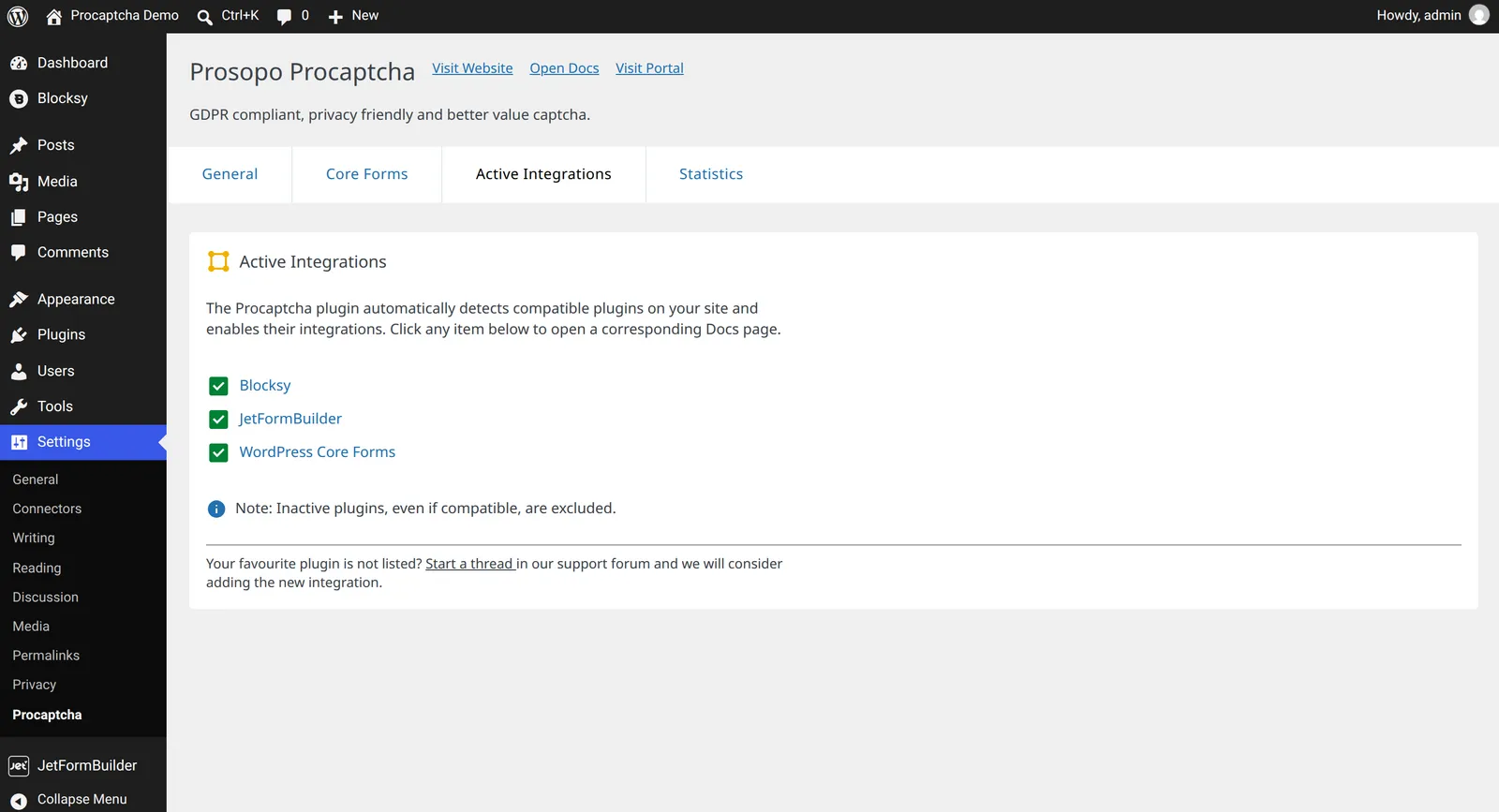
Section titled 2. Confirm the integration is activeBricks is a theme rather than a plugin, so the Procaptcha plugin detects it from the active template. To confirm, open Settings > Procaptcha > Active Integrations and check that Bricks is listed.
Related blog articles